Hermes onboarding
Operator guide for first-time teams
Move from installer download to real AI operations with a clear, visual, high-signal guide designed for operators, reviewers, and deployment owners.
What this guide includes
Supported installer paths
Public downloads, paired Local Runtime onboarding, and portable runtime options across Windows WSL, Linux, and macOS.
First project workflow
Account creation, installation, project creation, workflow-type selection, blueprint generation, deployment, run execution, and review loops.
Outcome surfaces
Workflow records, outputs, approvals, learnings, deliveries, and specialized outreach artifacts from the same operator control plane.
Credential setup deep dive
A linked setup guide separates local LLM runtime credentials from workspace Telegram bot setup, so operators know exactly where each value belongs.
Guided operator walkthrough
Use this page for the full first-time operator flow, or open the standalone version for a clean, distraction-free walkthrough.
Step 1
Step 1. Download and installer paths
Hermes supports public downloads, paired Local Runtime onboarding, and portable runtime paths across Windows WSL, Linux, and macOS.
- Use Downloads when the operator needs installation packages before sign-in or before pairing.
- Use Local Runtime when the workspace is ready to pair a machine and bring a node online immediately.
- Use the setup guide to separate local-runtime LLM credentials from workspace Telegram commands and member chat preferences.

Step 2
Step 2. Workspace account setup
The first operator creates the workspace identity, verifies the email, and unlocks projects, nodes, schedules, approvals, and runtime pairing.
- Use a business-facing workspace name and operator email.
- Verify the email before trying to pair a machine or create deployments.
- After sign-in, the left navigation becomes the control plane for the full operating loop.

Step 3
Step 3. Local runtime installation
The local runtime turns a real machine into a trusted Hermes execution node. During installation, operators enter the LLM provider information the runtime needs to generate work locally.
- Create a pairing session from Local Runtime for the correct operating system and install mode.
- Run the installer on the target machine and enter the pairing code.
- During installation, provide the required LLM values such as API key, base URL, and primary model.
- Approve the node request when it appears so the machine can register as a live runtime target.

Step 4
Step 4. Project Builder blueprint
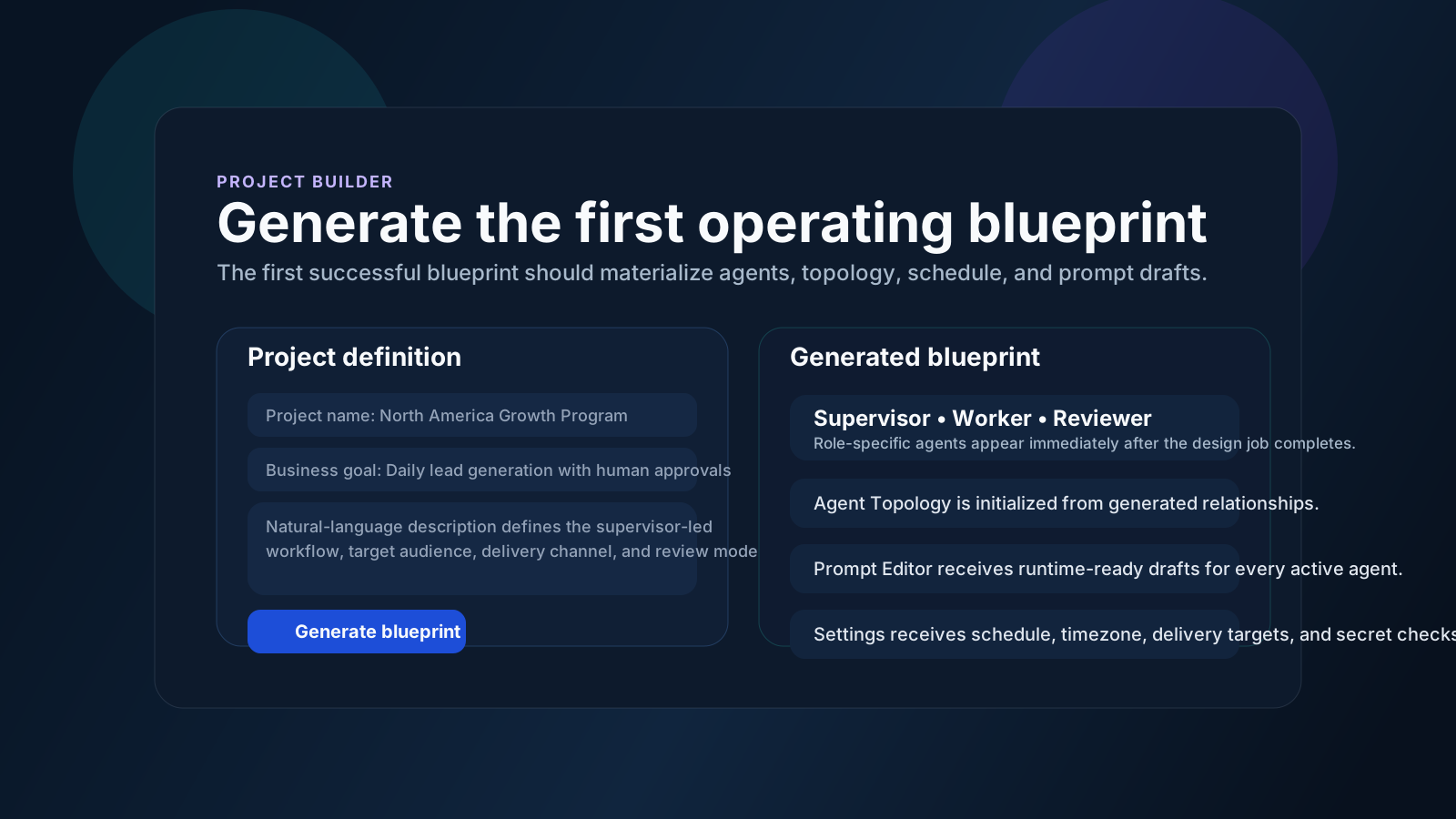
For a first-time team, Project Builder is the primary creation flow. The blueprint description becomes the source that materializes workflow type, agent topology, prompts, records, outputs, and review surfaces.
- Open Project Builder and enter the business description, workflow type, target outcomes, review expectations, and delivery intent.
- Use plain English. Hermes uses that description to generate the initial operating structure for research, operations, content, outreach, or custom AI work.
- This is the recommended path for the first project instead of manually creating every surface one by one.
Step 5
Step 5. Blueprint verification
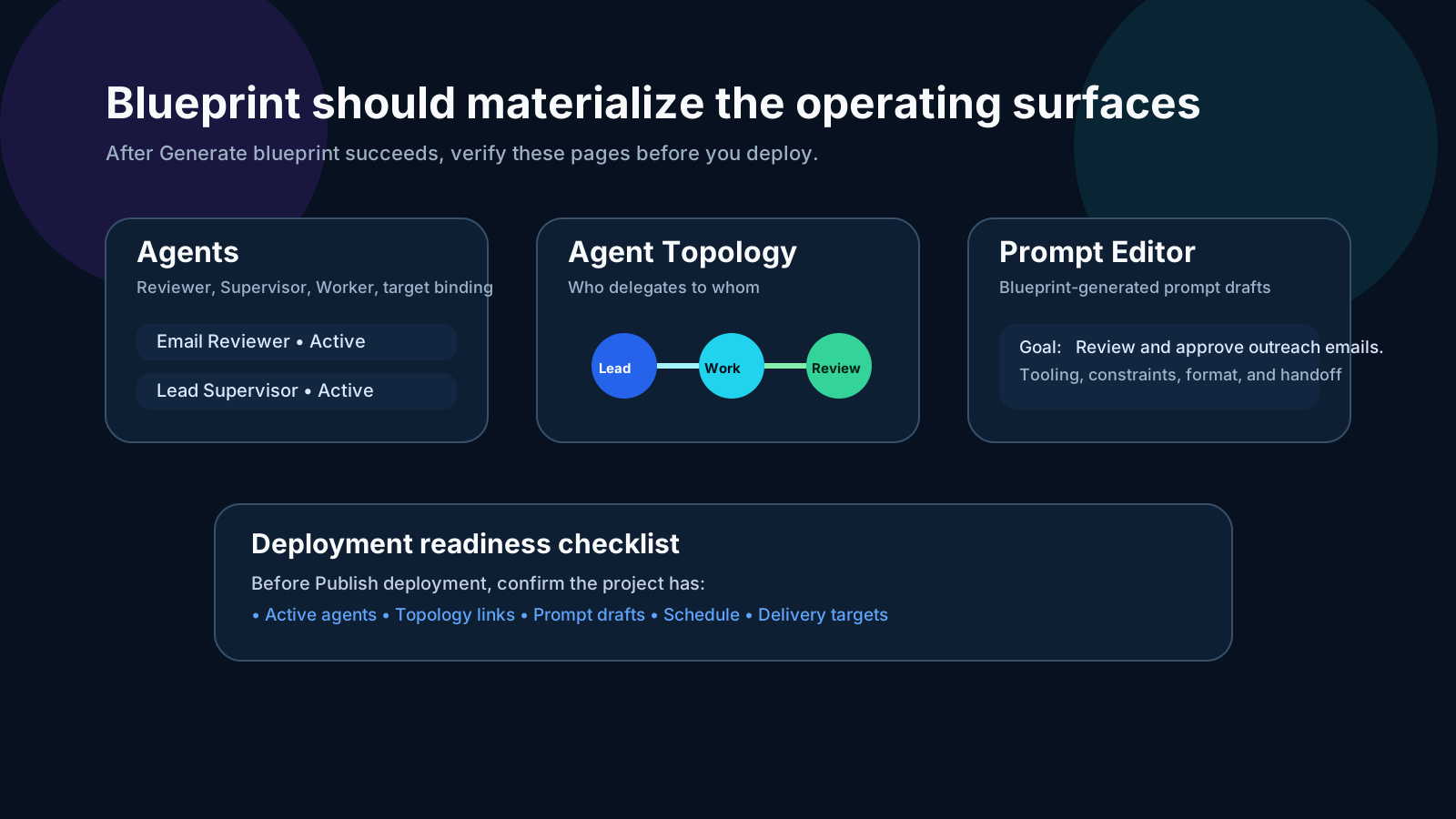
Blueprint generation is successful only when the system materializes the project itself and all key operating surfaces, not merely when the job says completed.
- Run Generate blueprint while the paired node is online.
- Hermes should automatically generate the Project, Agents, Agent Topology, Prompt Editor, Settings, and workflow-aware artifact contracts.
- If those surfaces are empty, regenerate before deploying or running work.
Step 6
Step 6. Deployment to a live node
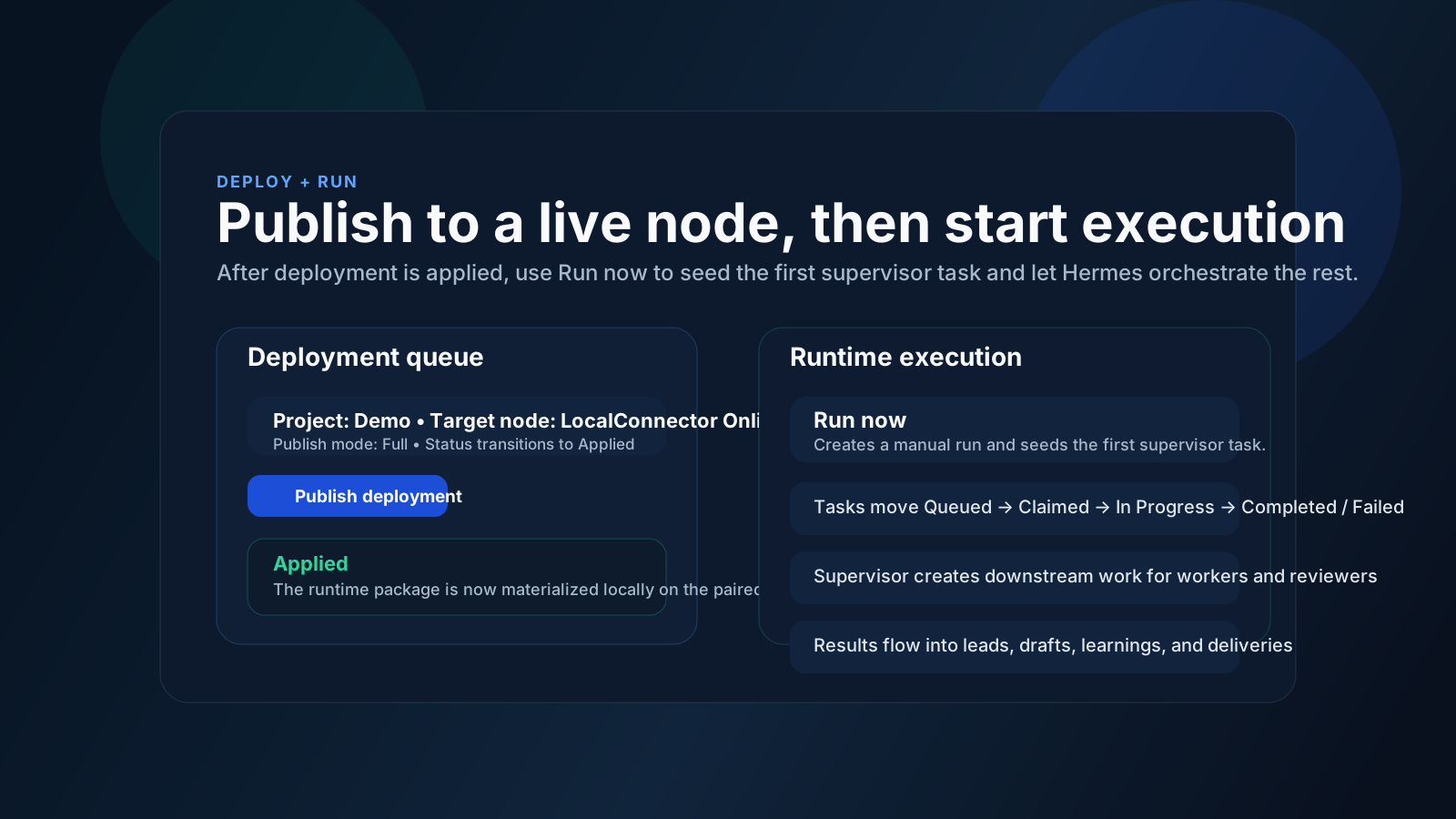
Deployment packages the blueprint into a runtime-ready version and binds it to an online node.
- Select the project and an online target node in Deployments.
- Publish a full deployment and wait for Applied.
- Only after deployment is applied should you expect runs to execute on that node.
Step 7
Step 7. First run operations
A new run usually starts with one supervisor coordination task. Downstream worker and reviewer tasks appear only after that first task completes.
- Use Run now from Runs after deployment is applied.
- Watch the first task move from Queued to Claimed to Completed.
- If the first task stalls, inspect Tasks, Nodes, and LocalConnector logs before starting another run.
Operator note
The first task being alone is normal. It only becomes a problem when it stays claimed or never produces worker and reviewer tasks.
Step 8
Step 8. Outcome verification
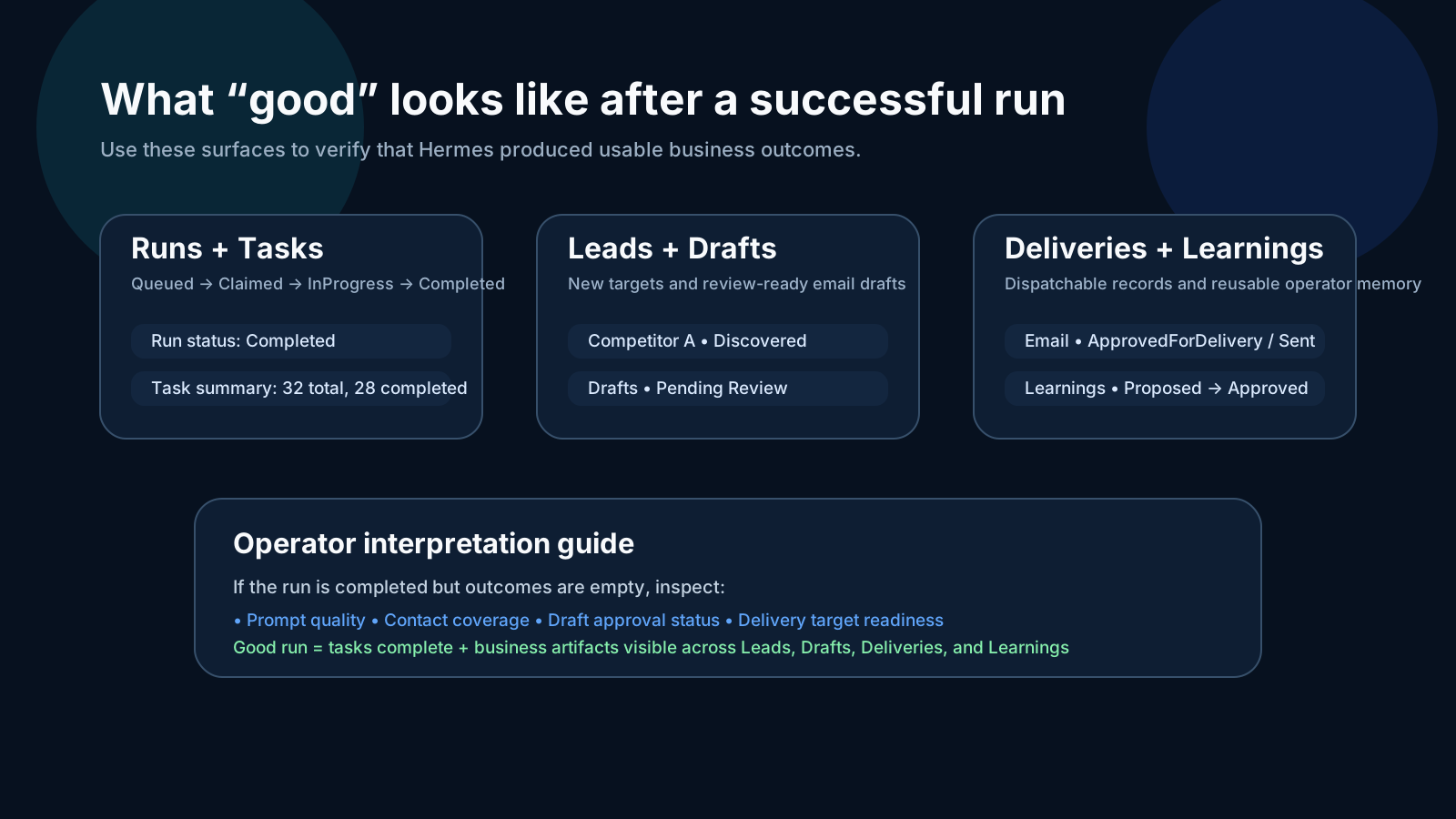
A run is valuable only when it produces auditable business artifacts across the control plane.
Records
Confirm that reusable findings, entities, risks, blockers, opportunities, contacts, or workflow-specific records have been created.
Outputs
Review reports, recommendations, briefs, drafts, action plans, or other deliverables created by the workflow.
Approvals
Check decision-ready items, external-facing copy, sensitive recommendations, and review-required outputs before they move downstream.
Deliveries
Validate Email, reporting, notification, and channel targets, readiness, and dispatch outcomes.
Step 9
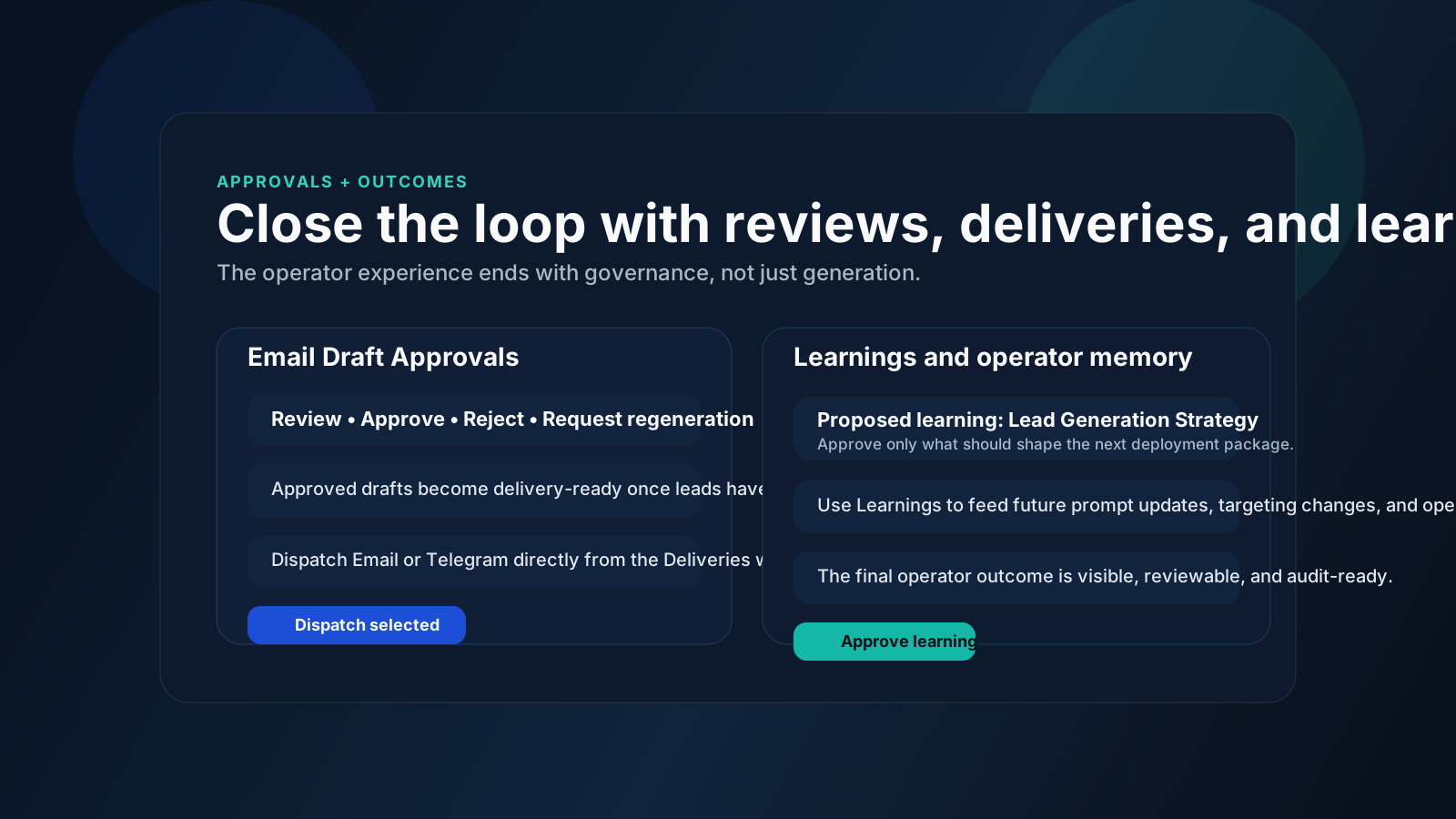
Step 9. Review, learnings, and delivery
The operating finish line is governance and delivery readiness. Hermes should leave a review trail, not just generated content.
- Use Approvals to approve, reject, or request regeneration for workflow outputs, recommendations, and customer-facing drafts.
- Use Learnings to approve the operational insights worth carrying into the next deployment.
- Use Deliveries to dispatch Email, reporting, or notification artifacts and confirm sent or failed outcomes.
Step 10
Step 10. Settings, Telegram commands, and LLM credentials
Hermes splits setup by responsibility: LLM runtime values are entered during Local Runtime installation, while workspace Telegram bot settings and member command preferences are completed from Settings.
LLM runtime setup
During installation, enter the LLM provider API key, base URL, and primary model so the local Hermes runtime can execute blueprint and run tasks.
Telegram command setup
Create the bot, save the workspace bot token in Settings, then let each member link their own chat ID and choose project, deployment, node, and run notifications.